
FolderMill can run not only as a regular desktop application but also as a background Windows service. In this mode, FolderMill functions as an autonomous service, continuously processing files even when no user is actively logged into the system.
Service Mode is designed for automated, enterprise-level workflows that demand high reliability. It allows FolderMill to operate continuously in the background, completely eliminating the need for manual user interaction.
Why use Service Mode?
Normally, desktop applications run only within a user session. This means the program usually starts after a user logs in and may stop working after logout or system restart.
When running as a Windows service, FolderMill automatically launches alongside the operating system. It quietly monitors folders and processes files 24/7 in the background.
For example, companies use FolderMill to automatically print invoices, process scanned documents, convert files to PDF, or route documents between departments. Users or third-party applications simply drop files into a shared network folder, and FolderMill handles the entire conversion or printing process on a dedicated server.
Service Mode is highly recommended for:
- Unattended document processing (24/7 operations)
- Shared office environments and corporate networks
- Print automation servers
- Integration with ERP, EMR, or accounting systems
- Remote or virtual servers
- Systems that require automatic recovery and processing after a reboot
Real-World Use Cases for Service Mode
FolderMill’s Service Mode is designed for environments that demand continuous, unattended document processing. In manufacturing and logistics, it operates silently 24/7 to automatically output critical documents like shipping labels, packing slips, invoices, and barcodes the moment they are generated. Similarly, healthcare facilities rely on this uninterrupted operation to process patient scans, referral forms, and prescriptions overnight, ensuring essential workflows never stop just because a user logs out.
Industry application examples:
- 🏭 Manufacturing / Logistics
- 🏥 Healthcare
- 🏢 Shared Office Automation
- 🧾 ERP / Accounting Integrations
- ☁️ VM / Cloud Server Usage
Desktop Mode vs. Service Mode
Desktop mode is suitable for personal or occasional workflows where a user is always logged into the system and can supervise processing manually.
Service Mode is better suited for business automation scenarios where FolderMill acts as a background processing engine. Since it runs independently of user sessions, processing can continue even after logout or system restart.
This approach improves reliability and makes FolderMill more suitable for server environments and shared automation workflows.
| Desktop App | Windows Service | |
|---|---|---|
| Role | Tool for a user | Infrastructure component |
| Operation | Interactive | Autonomous |
| User Session | User session required | No login required |
| Best for | SMB or personal workflow | Enterprise workflow |
Note on FolderMill Edition
Please note that FolderMill (the standard full version) includes Service Mode by default. However, if you are using FolderMill Desktop Edition, Service Mode is not included and will not function. To use this mode, ensure you have the standard edition.
Best Practices for Service Mode
Running software as a Windows service introduces specific architectural rules. To ensure your FolderMill workflows run smoothly, keep these technical details in mind:
1. Mapped drives vs. UNC paths
When running as a service, FolderMill may not recognize mapped network drives (e.g., Z:\ or X:\) because those drive letters are tied to a specific user's login session. Always use UNC paths (e.g., \\ServerName\SharedFolder\Input) when defining your Hot Folders ("Incoming" folders) and Output folders.
2. Network Permissions and the Service Account
By default, FolderMill runs under the built-in LocalSystem Windows account. While this account has full control over the local machine, it does not have access to network-shared folders, FTP servers, or network printers. If your workflow involves pulling files from a shared server or printing to a network printer, you must configure the FolderMill service to run under a dedicated Domain User or Network Account that has the appropriate read/write/print permissions.
3. Session 0 Isolation (No GUI)
Windows services run in an isolated session (Session 0) without a graphical user interface. This means that if a file requires manual intervention (for example, a corrupted Excel file that triggers a "Do you want to update links?" pop-up), the dialog box cannot be seen or clicked by anyone, which could cause the process to hang. Ensure your source files are clean and do not trigger application macros or manual prompts.
4. Advanced Scheduling Integration
Because it operates as a service, FolderMill can be integrated with the Windows Task Scheduler using command-line scripts (e.g., sc start FolderMillService and sc stop FolderMillService). This allows you to set up strict processing windows — for instance, configuring FolderMill to only process heavy document conversions during off-peak hours (e.g., 6:00 PM to 8:00 AM) to save server resources during the workday.
How to Configure Service Mode
- Open the FolderMill Control Panel.
- Navigate to General Settings → FolderMill.
- Apply the following settings:
- Run FolderMill as service: Check this box to enable Windows Service Mode. FolderMill Processor will immediately shift to working in the background.
- Service settings: By default, logging as
LocalSystemis selected. Click this setting to specify which Windows account will run the service. - Start FolderMill Processor when Windows starts: Check this to ensure FolderMill launches during the OS startup sequence, guaranteeing that Hot Folders resume processing automatically after a reboot.
Logging on as local system vs. user account
 Important note
We recommend using a user account with access to the required resources (such as printers or network folders). The LocalSystem account has its own isolated, hidden user profile. It does not inherit the printers, mapped drives, or personalized settings that you installed on your own account. Therefore, it may have limited permissions compared to a user account.
If you choose a specific user account, please note that printers and mapped network drives are generally installed per-user, not per-machine. The selected user must have the required printer installed, for example, if you have an automated printing workflow.
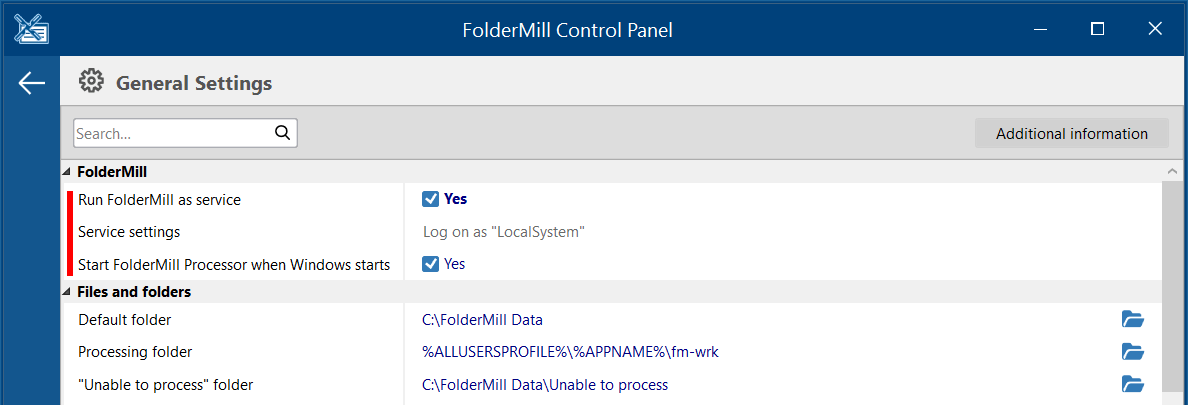
| Setting | Description |
|---|---|
| Run FolderMill as service | Enables Windows Service Mode. When enabled, FolderMill Processor works in the background as a Windows service instead of a regular desktop application. |
| Service settings | Specifies which Windows account (or Local System account) will be used to run the service. By default, FolderMill uses the built-in LocalSystem account. However, it is recommended to select a specific User account ("This account:") that has access to network folders, printers, or shared resources.If a User account is selected, Service Mode utilizes the environment and profile of the designated user account. |
| Start FolderMill Processor when Windows starts | Automatically launches FolderMill Processor during Windows startup. This helps ensure that Hot Folders continue processing files automatically after reboot. |
Troubleshooting tips
FolderMill service cannot start under a user account
In some environments, the FolderMill service may fail to launch because the assigned Windows user account lacks sufficient system privileges (permissions). You will need to explicitly grant that account the Log on as a service permission.
To grant this permission:
- Sign in to Windows using an Administrator account.
- Open Administrative Tools → Local Security Policy.
- Expand Local Policies and select User Rights Assignment.
- In the right pane, right-click Log on as a service and select Properties.
- Click Add User or Group.
- Add the specific Windows user account you applied in the FolderMill Service settings.
- Click OK to save the changes.
After updating the policy, restart the FolderMill service and try again. For more details on this Windows policy, you can refer to the official Microsoft documentation on enabling service log on.
More information is available on the Microsoft website:
Enable service log on through a local group policy →