
 Reviewed by Leonid Jakobson
FolderMill allows you to control the order in which files are processed by assigning priority levels to different Hot Folders. This is useful when certain tasks, such as printing specific file types that require more urgent timing and need to be executed before others.
There are two ways to configure priority: using the standard Low/Medium/High settings or, for more complex workflows, setting a Custom priority.
Method 1: Standard Priority (Low/Medium/High)
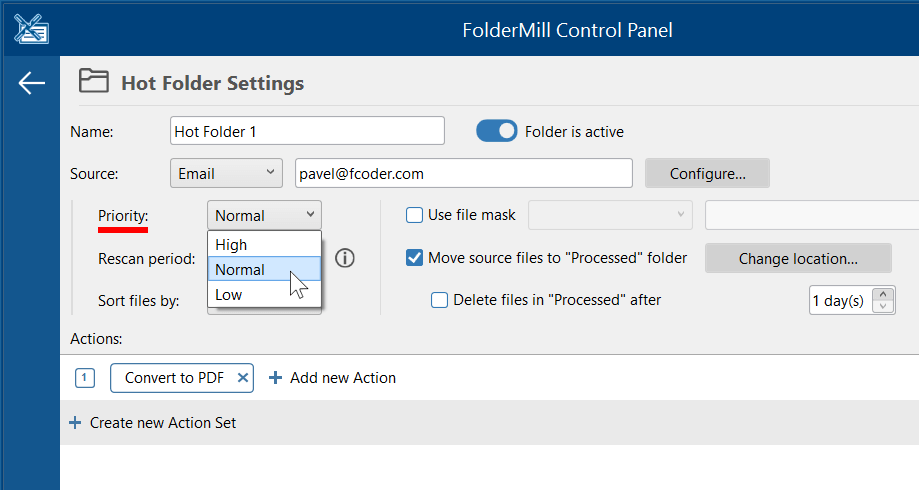
For basic queue management, you can assign one of three standard priority levels to a Hot Folder.
- Open FolderMill Control Panel.
- Double-click the desired Hot Folder in the list to open its Settings.
- Locate the Priority setting in the main settings window.
- Select Low, Medium, or High.
- Click OK to save changes.
FolderMill will attempt to process files from High priority folders before those marked Medium or Low.
Method 2: Advanced Custom Priority (Numeric)
Starting from version 5.6 introduces the ability to set precise numeric priorities. This allows for a numeric hierarchy (e.g., Priority 100 vs. Priority 10), where the higher the number, the higher the priority.
Step 1: Enable Extended Features
To access numeric priority settings, you must first enable extended features in the General Settings.
- Go to the Settings tab in the main FolderMill window.
- Navigate to Miscellaneous.
- Set Enable extended features to Yes.
- Click Apply or OK.
Step 2: Set the Custom Priority
- Open the Settings of the specific Hot Folder.
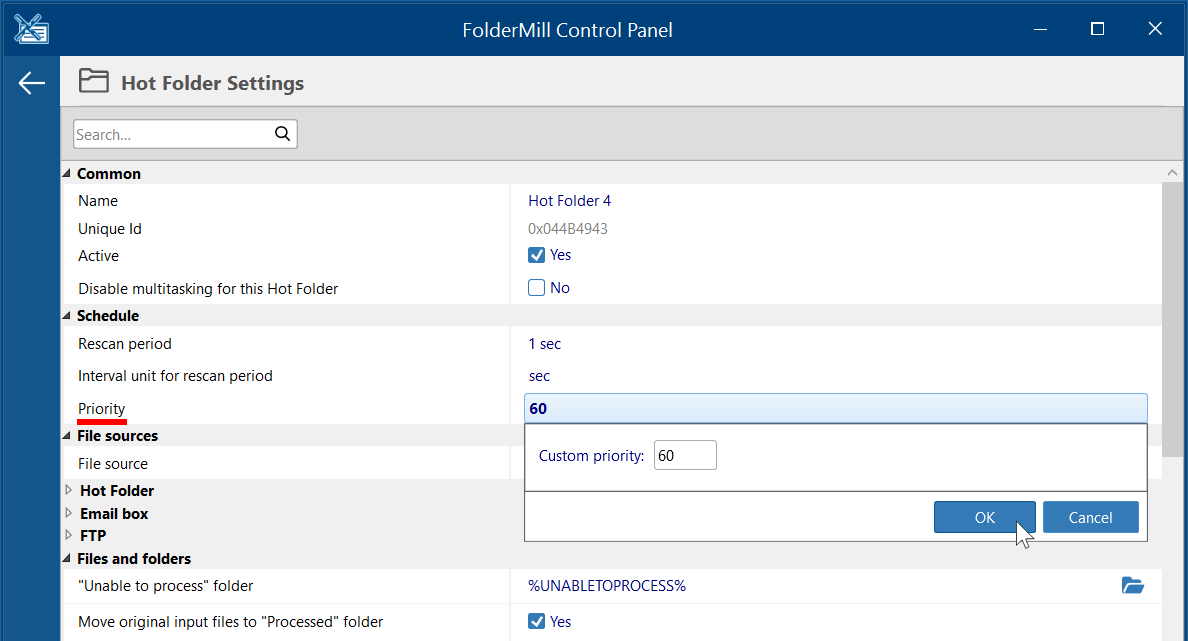
- Go to Advanced settings → Priority.
- Instead of selecting Low/Medium/High, you can now enter a specific Custom priority value.
- Enter a number (e.g., 10 for lower priority, 100 for higher priority).
Single task mode: Enforcing sequential processing
By default, FolderMill may process multiple files simultaneously (multitasking). To ensure that priorities are respected strictly — meaning a high-priority document finishes completely before a lower-priority one begins — you should disable multitasking.
For all Hot Folders:
- Go to Settings → Multitasking.
- Find Multitasking mode.
- Select Single task.
For a selected Hot Folder only:
- Open the Settings of a specific Hot Folder.
- Go to Advanced settings → Disable multitasking for this Hot Folder:Yes.
This ensures that the processor performs only one task at a time, strictly adhering to the priority order you established.

If, in addition to Single task mode, you wish to stop processing on any error, you should enable the so-called "Strict mode". Learn more: "Strict Mode" in FolderMill: Process Files in a Specific Order and Stop Processing in Case of Any Error)
Use case example: Preventing mixed print jobs
Use case:
A user has 6 different Hot Folders sending documents to the same physical printer. If files are dropped into multiple folders simultaneously, the printer might receive a mix of pages from different sources, causing mix-ups.
Solution:
- Assign priorities: The user assigns a unique Custom priority number to each Hot Folder (e.g., Hot Folder A = 60, Hot Folder B = 50, etc.).
- Enable Single task mode: By setting Multitasking mode to Single task, FolderMill processes the queue one file at a time before switching to another task.
- As a result, the printer receives documents in a strict order, preventing the "mixing" of documents from different Hot Folders in the output tray.
You may also like to read:
“Strict Mode” in FolderMill: Process Files in a Specific Order and Stop Processing in Case of Any Error
Technical Review & Approval
Leonid Jakobson is Director and Head of Product at fCoder, SIA, with 15+ years of experience in document processing automation. He leads development of FolderMill, a platform for automated file conversion, printing, and workflow optimization used by enterprises worldwide.
 Expert-Verified
"I have personally reviewed this article to ensure everything is accurate and the step-by-step instructions work exactly as described."
— Leonid Jakobson