
FolderMill lets you use an FTP, FTPS, or SFTP server as an input source of files for a Hot Folder. This means FolderMill can automatically monitor a remote server, download incoming files, and process them according to your configured Actions (e.g., print, convert, copy, OCR, etc.).
This setup is commonly used for automated document processing and FTP-based workflows. It is useful when files are uploaded by external systems, remote offices, or third-party services.
- How it works
- Setting up FTP Server as a Source for Hot Folder step by step
- FTP, FTPS, and SFTP: What’s the difference?
- Automatic printing of incoming files from FTP on the chosen printer
- FAQ
- Is there a way to upload files to FTP as well?
- Why is the minimum rescan period 4 seconds?
- When using FTP as Source, does FolderMill keep the same subfolder structure on the output? Does the source subfolder get replicated from the FTP?
- Is there a way to configure FolderMill to get files from SFTP which require key-based access (passwordless SFTP login)?
How it works
[ 📤 Files are uploaded to an FTP server ] →
[ 🔄 FolderMill connects to the server at each rescan interval and checks for new files ] →
[ 📥 Files are downloaded to the Hot Folder ] →
[ ⚙️ Assigned Actions are applied automatically ]
Setting up FTP Server as a Source for Hot Folder step by step
Follow these steps to set up an FTP-based Hot Folder:
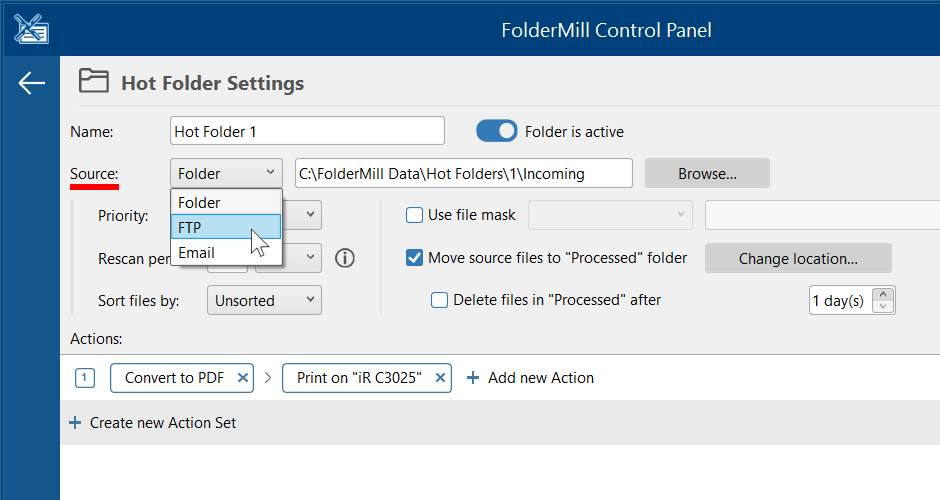
Step 1. Create a Hot Folder and select Source: FTP
In the FolderMill Control Panel, go to Hot Folders and create a new Hot Folder. In the Source field select FTP.
- Open FolderMill Control Panel
- Go to Hot Folders
- Click Add new Hot Folder
- In the Source field, select FTP, click Configure…
Step 2. Enter FTP settings
Enter FTP Settings by filling in the required fields.
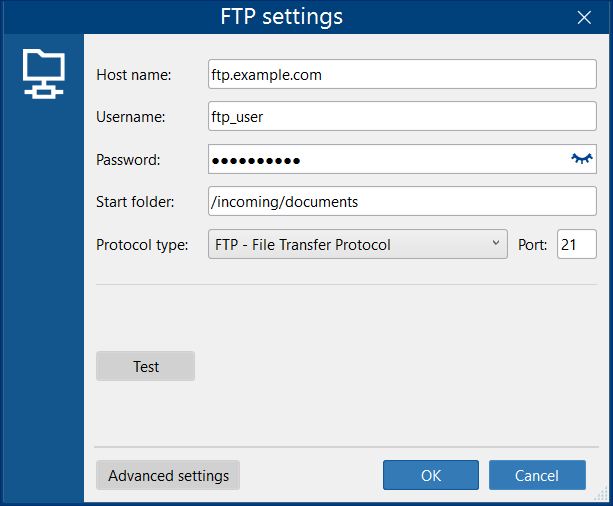
Fill in the fields as follows:
| Field | Description | Example |
|---|---|---|
| Host name | FTP server address | ftp.example.com |
| Username | FTP account login | ftp_user |
| Password | FTP account password | •••••••• |
| Start folder | Remote directory to monitor | /incoming/documents |
| Protocol type | FTP / FTPS / SFTP What's the difference? | FTPS - FTP with TLS/SSL |
| Port | Server port | 21 (FTP/FTPS) or 22 (SFTP) |
 Tip: Drop files into a dedicated FTP subfolder (like /incoming) to avoid unwanted files. Avoid using the FTP root directory to prevent accidental processing of unrelated files.
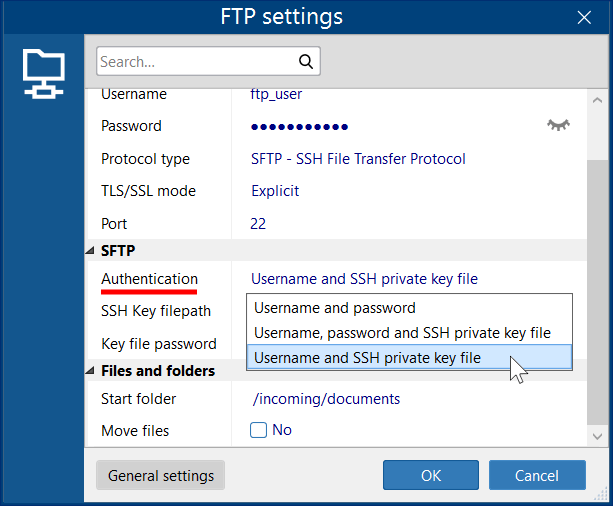
Optional: Configuring SSH Key Authentication for SFTP
If your server requires SSH key authentication rather than just a standard password, you can set this up before testing your connection:
- Click the Advanced settings button at the bottom of the FTP settings window.
- Locate and expand the SFTP section.
- Click the Authentication drop-down menu and select your required method: Username, password and SSH private key file or Username and SSH private key file.
- Specify the SSH Key filepath to locate your private key on your system.
- If your key is encrypted, enter the password in the Key file password field.
- Click OK to save and return to the main configuration window.
Step 3. Test your FTP connection
Click Test to verify the connection.
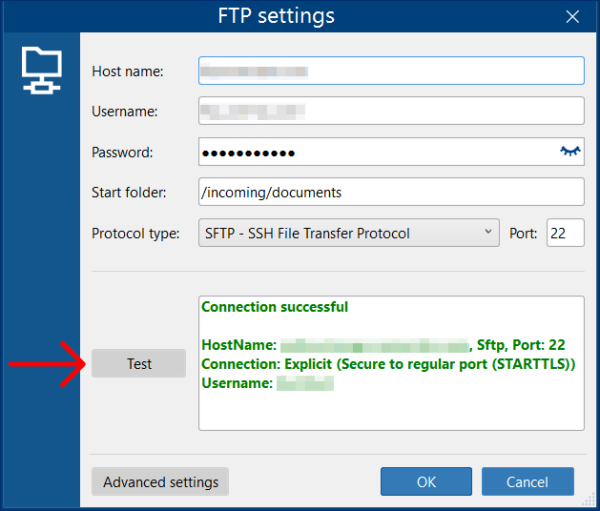
If the test fails, verify:
- host name and port
- username and password
- firewall settings
- authentication method (especially for SFTP — when using SSH key files)
Step 4. Configure your Action Set and start processing
Add the required Actions (e.g., Convert to PDF, Print document), then click Start.
Click Apply Changes to save the configuration. Make sure the Hot Folder is active (the green Start icon is on).
FolderMill will now begin checking the FTP server for new files. Files placed there will now be processed automatically.
FTP, FTPS, and SFTP: What’s the difference?
FolderMill supports FTP, FTPS, and SFTP.
FTP (File Transfer Protocol), SFTP (SSH File Transfer Protocol), and FTPS (FTP Secure) are all protocols used for transferring files over a network. FTP is insecure (plaintext) while FTPS adds TLS/SSL and SFTP uses SSH encryption. FTP is unencrypted, whereas FTPS (FTP+TLS) and SFTP (SSH) secure data transmission.
We recommend using FTPS or SFTP for secure environments.
Summary:
- FTP: Unencrypted file transfer (insecure). Data and credentials are sent in plaintext. Port: 21
- FTPS: FTP with TLS/SSL encryption. Can operate in Explicit or Implicit mode. Port: 21 (Explicit) or 990 (Implicit)
- SFTP: Secure (uses SSH). Encrypts both command and data using SSH for encryption. Port: 22
Automatic printing of incoming files from FTP on the chosen printer
For example, an online retailer’s internal system automatically generates invoices, packing slips, product labels, shipping barcodes, and other documentation. As soon as any of these files is placed in the designated FTP directory, FolderMill immediately picks it up and routes it to the appropriate printer.
To set up the configuration, select FTP as Source in Hot Folder Settings, enter FTP credentials using the Configure… button and then add a Print document Action. Start FolderMill processor to begin file monitoring.
 Tip: You can streamline automated invoice printing by using FolderMill's filename and extension filters. For instance:documents containing "order" in the filename can be routed directly to the warehouse assembly room "invoice" files can be sent to the accounting department's printerfiles named "label" (or those with a .zpl extension) can be automatically directed to a specialized barcode printer.
Other common FTP workflows may include:
- Format standardization (Conversion): Clients upload various file types (Word, Excel, JPEG). FolderMill pulls them via SFTP, applies a Convert to PDF Action, and saves the standardized documents to a local network drive for archiving.
- Watermarking & distribution: Draft designs are sent via FTP. FolderMill applies an Add Text Watermark Action (e.g., "CONFIDENTIAL") and moves the processed files into an internal review folder.
FAQ
Is there a way to upload files to FTP as well?
Yes, try using the Upload to FTP Action for this task.
Why is the minimum rescan period 4 seconds?
When saving your Hot Folder settings, you may receive a warning advising you to set the rescan interval to 4 seconds or more. This is required because the FTP protocol operates relatively slowly. Additionally, if FolderMill runs in multi-tasking mode, a shorter interval could spawn multiple simultaneous connections, which may cause collisions with the FTP server.
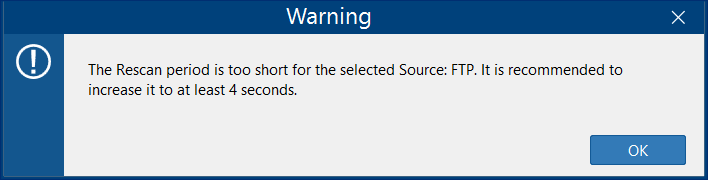
If you encounter any issues, we recommend increasing the Rescan period, as there may be connection delays, and many servers also have limits on the number of simultaneous connections. To adjust it, check the Rescan period setting on the Hot Folder Settings window.
When using FTP as Source, does FolderMill keep the same subfolder structure on the output? Does the source subfolder get replicated from the FTP?
Yes, the output subfolder structure remains the same as in the Source. Make sure you're using FolderMill 5.3 or newer.
Is there a way to configure FolderMill to get files from SFTP which require key-based access (passwordless SFTP login)?
Yes, FolderMill supports SHH authentication. To configure this type of authentication, open FTP Settings → Advanced settings → SFTP. Configure Authentication, SSH Key filepath, and Key file password accordingly.
FolderMill helps you get rid of processes which involve time-consuming and error-prone manual document-related tasks. If you are experiencing any difficulties with document workflows in your office — please get in touch with us and tell us about your issue.

You may also like to read: