
Sometimes you might need to flatten or rasterize your PDFs to make them image-only, which prevents the text from being selected, edited, or searched.
This process converts the vector content (like text and graphics) on each page into a pixel-based image. The resulting PDF is entirely image-based, meaning all pages are bitmaps and lack a hidden text layer. Any original text is integrated into the image, making it unselectable, uncopyable, and unsearchable.
FolderMill can automate this process: it can take your files, render their pages as images, and then build a PDF from those images. The result is a compact, printer-friendly PDF with all text locked into images (non-searchable).
Both methods outlined below produce a "rasterized" or "flattened" PDFs consisting entirely of page images.
Method 1: Convert to TIFF → Convert to PDF
Use a series of two Actions in FolderMill to flatten the document:
- Add a Convert to Image: TIFF Action. Choose TIFF as the image format and enable Append to existing TIFF option if you want to merge multiple files into one. Select TIFF to create high-quality page images (for example, set resolution to 300–600 DPI).
- Add a Convert to PDF Action. This will take the TIFF images and turn them into PDF.
- Configure and start processing. Apply the settings and click Start on the FolderMill Control Panel. Then drop your documents into the Hot Folder’s Incoming folder. FolderMill will first convert each page to a TIFF image, then convert those images into a image-based PDF.
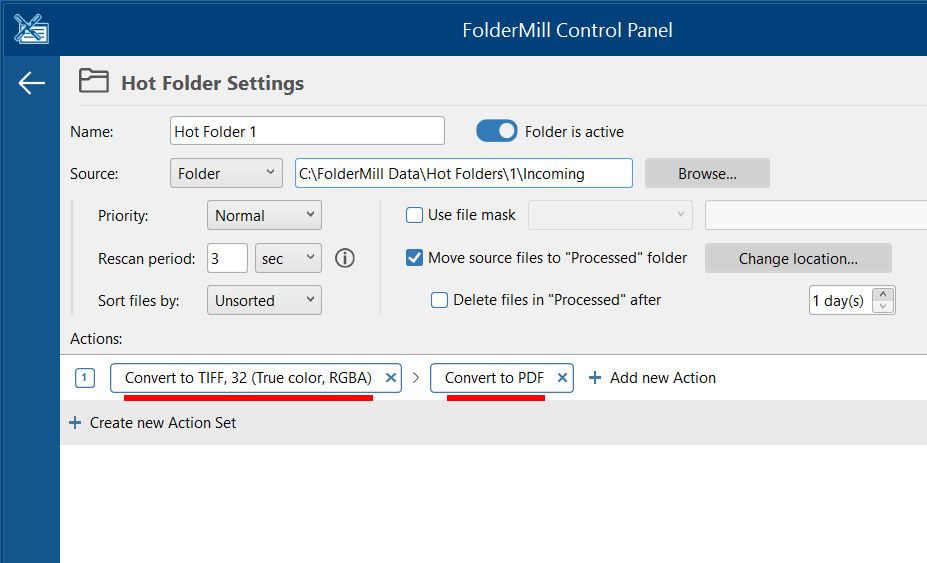
As a result, the output PDF will have pages that are essentially images. All text and graphics from the original gets flattened, so there is no selectable text (text in the PDF is "locked" as part of the image). This rasterized PDF is usually smaller (since layers are merged) and more reliable for printing – after flattening, the contents are "locked in place".
Method 2: Use Convert to PDF with Flatten option
For an even simpler setup, you can do it in one step:
- Add a Convert to PDF Action. In the Action’s settings, go to Advanced, find the Flatten PDF (non-searchable text) option, and set it to Yes. This tells FolderMill to render each page as an image internally.
- Start processing. Apply the changes and click Start, then put your files in the "Incoming" folder.
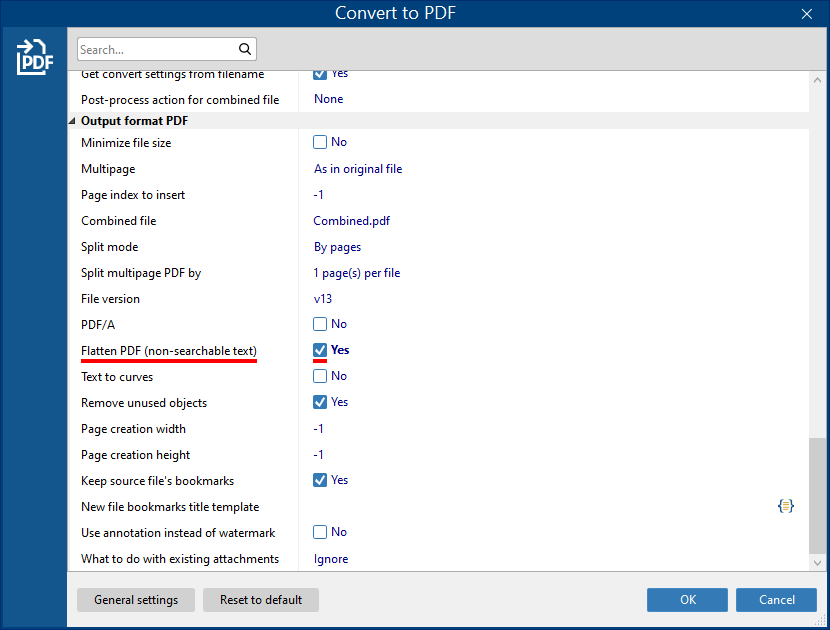
FolderMill will use the Convert to PDF Action with rasterization enabled, producing a flattened output. Basically, FolderMill will save each PDF page as a raster image. All interactive elements on the PDF become non-editable.
Benefits of a rasterized (non-searchable) PDF

Example
Since "image-only" PDF cannot be searched or edited, lawyers often exchange PDFs in image form so that the opposing party cannot easily copy or edit the text.
Using any of the above methods results in a raster PDF file consisting of images. This has several advantages:
- Non-searchable/Non-editable: There is no text layer. As a result, text cannot be selected, copied, or searched. The PDF becomes essentially read-only.
- Merged layers, smaller size: Flattening merges all elements into one layer, which usually reduces file size. Without extra layers or hidden text, the PDF is simpler and often more compact.
- Printer-friendly: The content gets "locked" and will print exactly as seen, without relying on font embedding or printer features. Many printing workflows prefer image-based PDFs to ensure consistency.
Either method creates a "rasterized PDF" (a bitmap PDF) that is ideal for archiving or printing where you want to protect the content. The pages look the same on any device or printer, but the text cannot be edited or searched. This meets the goal of flattening documents and forcing non-searchable text, while also helping to keep the output PDFs smaller in size.
Difference between searchable and non-searchable PDF
Non-searchable PDF
A scanned document or a photo converted to PDF is already non-searchable – it contains only images of the content. Flattening or rasterizing a PDF merges all layers (text, graphics, etc.) into one image layer. Once a PDF is flattened into a single layer, the document will no longer be editable.
Searchable PDF
As opposed to non-searchable documents, searchable PDFs may contain multiple layers, vector and font data, charts and other elements. Their text can be selected, and they usually have larger sizes.