
Many businesses rely on batch processing to produce labels in order to generate numerous ZPL files that can be printed directly to a thermal or other supported printer.
Whether you're printing 4×6" labels, small barcode labels, A4 labels, QR codes — their printing can be easily automated via FolderMill's Hot Folders. The program can handle a variety of label file formats: ZPL (ZPL II), EPL, PDF, and more. In practice, simply drop your label files (ZPL, EPL, PDF, etc.) into the Hot Folder on your Windows Server and FolderMill will batch print labels automatically.
FolderMill is a hot-folder utility that enables automated printing of labels and other documents. Whether you need to batch print labels or automate ZPL/EPL printing, FolderMill processes incoming label files and sends them directly to the required printer with no manual intervention. This article explains how FolderMill handles ZPL printing and how to configure it correctly to ensure successful output.
- How to Batch-Process and Automate Printing Labels via Hot Folders
- Setting Up Hot Folders for Automatic Label Printing
- Automated Printing ZPL Labels on Zebra Thermal Printers
- Printing to Non-Thermal (Office) Printers
- FolderMill is a one stop shop for large-scale document printing
- Other solutions for batch printing Zebra ZPL labels
- FAQ
How to Batch-Process and Automate Printing Labels via Hot Folders
FolderMill is capable of printing various files automatically, once the files are placed into the Source (Hot Folder). Your labels will be batch-printed without any further manual intervention. FolderMill processes each file immediately, so this creates a continuous automated printing workflow.
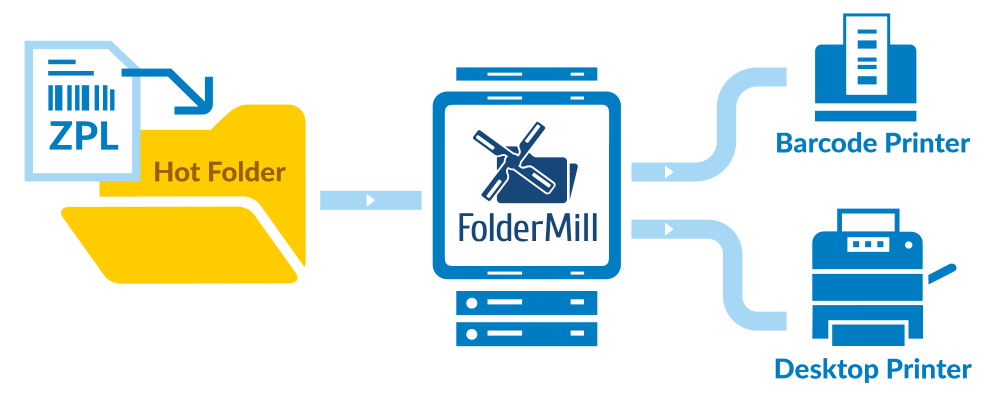
"We generate shipping labels in batches, and each batch is exported as a ZPL file rather than being sent directly to a printer. These ZPL files contain standard Zebra printer commands — if we send one directly to a Zebra printer, it should print a complete shipping label.
We’re looking to use your software to automatically send these individual ZPL files to our Zebra printers in batches." — here's one of many customer requests.
FolderMill is designed to automate exactly this kind of workflow: send a batch of ZPL files to your Zebra printer (or even a regular, non-thermal printer), and receive an identical batch of printed labels.
Setting Up Hot Folders for Automatic Label Printing
To begin automating label printing, install FolderMill on your Windows machine and open the FolderMill Control Panel. Then create a new Hot Folder and assign a Print document Action to it. This Action tells FolderMill to print any files placed into that folder.
1. Create a Hot Folder: In the FolderMill Control Panel, add a new Hot Folder and set its input directory (this is where your label files will be dropped).
2. Add a Print document Action: For that Hot Folder, add a Print Document Action. In the action settings, select the printer that should receive the labels (e.g. a Zebra thermal label printer). Leave most settings at their defaults initially.
3. Start FolderMill Processor: In the Control Panel, click Start to enable FolderMill’s monitoring. FolderMill will now watch the Hot Folder.
4. Drop label files: Copy or place your label files (ZPL, EPL, PDF, PNG, etc.) into the Hot Folder.
After configuring Hot Folders, your labels will be printed automatically as soon as ZPL, EPL, PDF, or other label files appear in the source directory.
Supported Label File Formats (ZPL, EPL, PDF, PRN, etc.)
FolderMill supports all common thermal label formats (ZPL, ZPL II, EPL, HPGL, etc.) as well as other printer languages (PCL, PostScript, HPGL, PLT, PRN, and even plain-text label scripts). In other words, you can automatically print ZPL labels, EPL labels, PDF labels, and more with one tool. Printer command language files may come with various file extensions: (e.g., .PRN for raw data) or even as plain text (.TXT). FolderMill can print:
- ZPL (Zebra Programming Language) – used by most Zebra label printers (Zi-, GK-, GX-, ZD-, ZT-, QLn-series, etc.).
- EPL (Eltron Programming Language) – used by older Zebra/Eltron desktop printers (e.g. Zebra LP 2824, TLP 2824).
- PRN / PCL – raw print data streams from Windows drivers (often used for barcodes and custom label drivers).
- PDF / PostScript / EPS – printable shipping labels from carriers or design tools.
- TXT – plain-text files containing label commands (rename to .zpl or .epl to treat them as label files).
Check the full list of supported file formats →
Printer language commands contain printer-specific instructions/data have generic extensions, for example, .PRN for raw printer data, and may even be plain text (TXT).
These formats are essentially command streams — typically ASCII-based, sometimes containing binary data — that tell the printer how to render text, graphics, barcodes, and layouts. They’re widely used in thermal label printers, laser printers, plotters, and other industrial printing devices to deliver fast and reliable output.

If your file format is not listed here, please contact our development team for support. We will consider adding your format or suggest an alternative solution.
Mapping specific rules for label printing
You can map specific rules to order management and label printing. Just set up different processing rules — file filtering based on filename, file extension, page size, or textual contents. For example, set up file mask *.zpl to process only Zebra ZPL files based on this criteria. Learn more about filtering incoming files by filename →
FolderMill’s flexibility means you can have multiple Hot Folders or multiple Print actions to route different file types. For instance, you could configure:
*.zpl → ZebraPrinter1
*.epl → ZebraPrinter2
*.pdf → LaserPrinter
This way, ZPL/EPL files go to thermal label printers while PDFs (such as carrier-generated labels) go to any office printer. Filename or extension filters in FolderMill make this routing automatic.
Another example:
- Print different types of labels to several Zebra printers
- Convert to PDF to save a digital copy
- Upload this copy to FTP.
Automated Printing ZPL Labels on Zebra Thermal Printers
Solution 1: Direct Printing Mode (Default)
"Will your program send ZPL files RAW to the printer? I have a Zebra label printer and need this functionality."
— one of the common requests from our customers.
FolderMill can send ZPL files straight to a label printer, allowing you to print ZPL commands directly to Zebra and other thermal printers.
In most cases, there's no need to change the settings, just make sure that DirectPrintHelper is selected as the print engine for the files you're printing. In direct printing mode (DirectPrintHelper enabled by default), FolderMill forwards files containing printer-language commands straight to the printer — without intermediate converting or rendering them.
How to "raw-print" ZPL commands with FolderMill:
- Add a Print document Action.
- Select your thermal label printer.
- Print using the default settings. FolderMill will send them straight to the printer.
Tip: If your label files have a .txt extension, you may need to rename them to .zpl or .prn (depending on printer model) so that FolderMill recognizes them as Zebra label files.
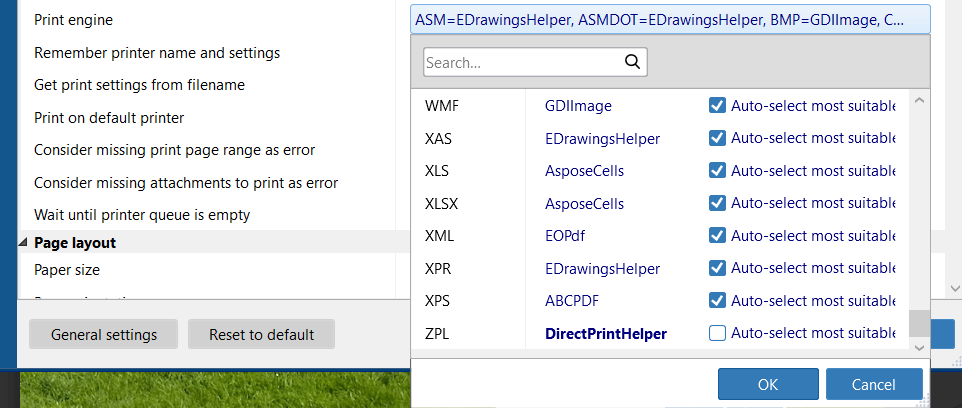
Note: To ensure DirectPrintHelper is used, open Print Document Action → Advanced settings → Document printing settings → Print engine and check that DirectPrintHelper is chosen for ZPL (or other printer language formats you're working with). Make sure that the option Auto-select most suitable engine is turned off.
What is direct printing? [+][-]
Direct printing is a method of sending print data straight to a printer without any conversion, rendering, or driver-based processing. Instead of generating formatted output like PDF or images, the system transmits raw printer commands — such as ZPL, EPL, PCL, or PostScript — exactly as written. To use this method, you can install a Generic / Text Only printer driver and send the file directly to the printer’s port.
The file's extension doesn’t matter as long as it contains plain text that the printer understands — whether it’s .txt, .zpl, .prn, .ps, or another command-based format. This method is commonly used for thermal and label printers that interpret such instructions natively. Simply put, there will be no modification or file conversion to any other format in the middle of the printing process.
Solution 2: Use a Generic / Text Only Printer Driver
If direct printing does not work in your environment (for example, some older printers or drivers may not accept raw ZPL), you can use another method as an alternative. So if direct printing doesn’t work in your setup, install and use the Generic / Text Only printer driver in Windows.
Learn how to install Generic Text Printer Driver available in Windows →
After installation:
- Create a new Hot Folder and specify Source for incoming files;
- Add a new Print Document Action in FolderMill.
- Select the Generic / Text Only printer.
Printing to Non-Thermal (Office) Printers
Sometimes it is necessary to print out sample labels on an office printer or when the end printer does not natively support the label language. If you need to print label files (ZPL/EPL/PRN) on a non-thermal printer (e.g. a desktop inkjet/laser), you have two main options:
- Convert-to-PDF then Print: In FolderMill, create a sequence of Actions: first Convert to PDF, then Print document. This converts the label (ZPL/EPL) into a PDF image and then sends that PDF to any printer. This ensures compatibility with printers that cannot understand raw label code. To do this, add a Convert to PDF Action (with your desired label size/DPI) followed by a Print document action. Make sure to disable “Save to Output Folder” on the Convert to PDF action if you only want the printed output.
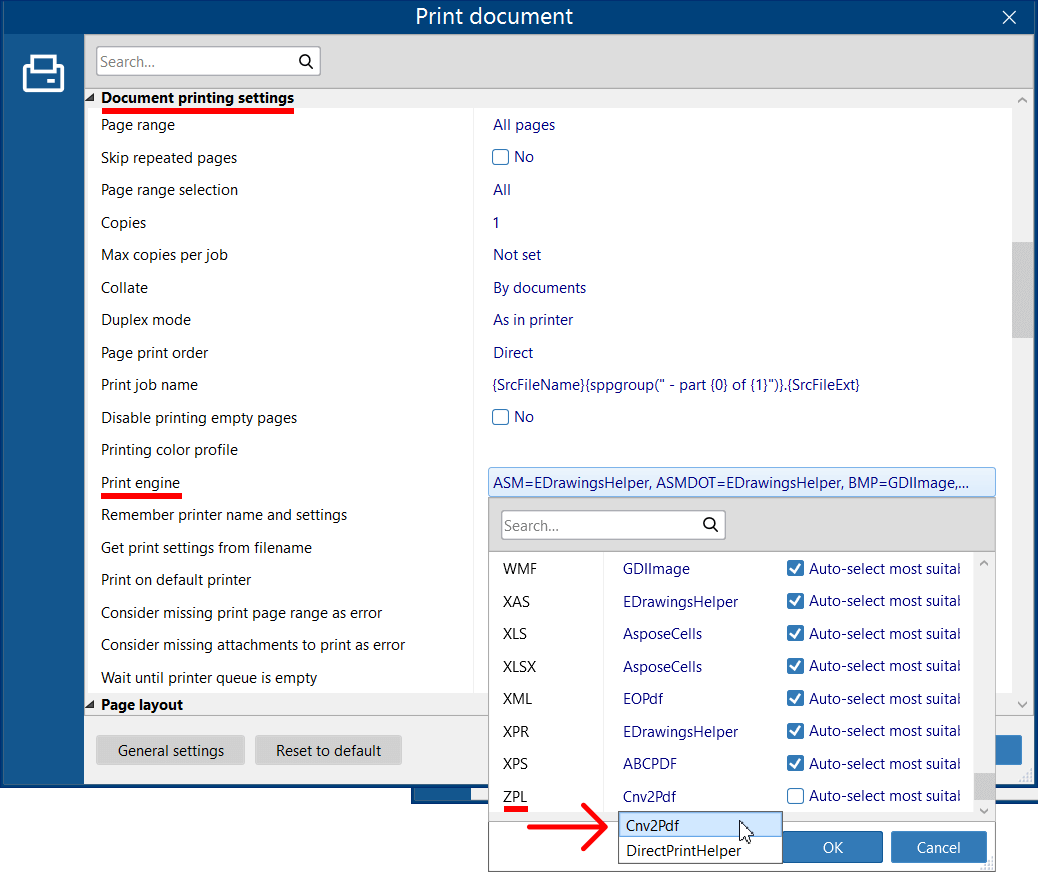
- Change Print Engine: Alternatively, in the Print Document Action’s Advanced settings, switch the Print Engine to "Cnv2Pdf" for ZPL/EPL (and disable Auto select most suitable engine). This tells FolderMill to internally convert the file to PDF before printing. This achieves the same effect (printing on any printer) while keeping one action.
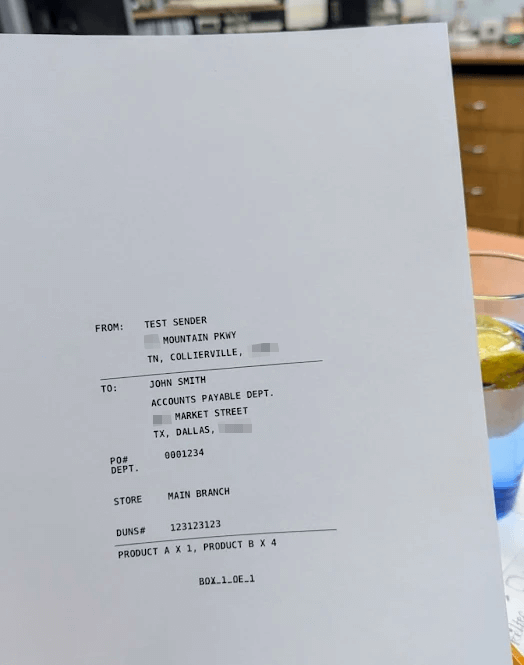
This is a sample ZPL printed on a regular Canon printer (A4 format)
FolderMill is a one stop shop for large-scale document printing
Whether you're printing invoices, barcodes, QR codes, shipping documents, delivery notes / packing lists, customs documents, contracts or agreements, packing slips, insurance documents, reports, invoices, delivery confirmation emails – everything can be automated with FolderMill's Hot Folders. You can check FolderMill's list of supported formats to ensure your documents can be printed or ask us directly.
FolderMill allows to automate other tasks besides just printing:
🗂️ Convert ZPL to PDF or Image
If you need: file conversion (e.g., ZPL → PDF)
Convert ZPL label or barcode files into PDF, JPEG, PNG, or TIFF automatically. Perfect for viewing, archiving, sharing labels, or preparing them for further printing.
🖨️ Print ZPL on any printer
If you need: printing (e.g., print ZPL on a Zebra printer)
Print ZPL (Zebra Programming Language) files directly on any printer — whether Zebra or non-Zebra, thermal or office model.
🔄 Convert + Print automatically
If you need: conversion + printing on non-thermal printer (ZPL → PDF → Print PDF)
FolderMill can convert and print ZPL files at the same time, sequentially saving both a digital copy and a printed label.
Where FolderMill can automate your workflow:
- USPS, UPS, FedEx, eBay, and Amazon shipments
- Logistics and distribution processes
- Carton and drum labeling
- And more
By configuring FolderMill Hot Folders and Print document Actions as described above, you can achieve full thermal label printing automation on Windows. FolderMill will batch print labels (Zebra ZPL, EPL, PDFs, etc.) as soon as they appear in the Hot Folder.
This hands-free workflow streamlines shipping operations: IT or warehouse software can simply export labels to a directory, and FolderMill handles the rest. The result is faster processing of orders and labels, with minimal effort.
Other solutions for batch printing Zebra ZPL labels
If Hot Folder automation is not the right fit for your workflow, fCoder also offers other tools for working with ZPL files — from batch printing and batch conversion to command-line automation and local previewing and editing.
Print Conductor
Print Conductor is a desktop batch printing application that lets you print large sets of files in one go. Unlike FolderMill, it does not use Hot Folders — instead, you manually add ZPL, EPL, PDF, PRN, and other label files to a print list inside the program. Once the list is prepared, Print Conductor sends all selected files to the chosen printer automatically, making it a convenient option for on-demand or supervised batch label printing.
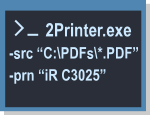
2Printer
2Printer is a command-line batch printing utility designed for automation. It can print ZPL, EPL, PDF, PRN, and various other label formats by executing a command that specifies the source folder or individual files. When the command runs, all matching files are printed to the selected printer. 2Printer can be called from scripts, other software, Windows Task Scheduler, or CMD, making it ideal for fully scripted or scheduled label-printing workflows.
Labeloid
Labeloid is a free ZPL viewer for Windows for opening, previewing, and editing existing ZPL files locally. Use it when you need to inspect a label before printing, review multi-label ZPL files, check the rendered result, or make changes to the raw ZPL source before printing or converting to PDF, JPEG, or PNG.
DocuFreezer
DocuFreezer is a Windows batch conversion tool that processes ZPL label files, HP, HPG, and HPGL printer graphics, PostScript and EPS files, and many other document and image formats. Add individual files, entire folders, or archives, select an output format, and convert them all in one operation. ZPL files are processed by the built-in engine and can be saved as PDF, JPEG, PNG, TIFF, BMP, or plain text, without uploading files online.
FAQ
FolderMill supports automated label printing workflows for ZPL, EPL, PRN, and PDF formats. Below are the most common questions about automating ZPL label printing.
What if the printer doesn’t print a ZPL file and shows an error?
You may encounter a printing error if a ZPL file is sent to a non-thermal printer. In such cases, the printer likely doesn’t support DirectPrintHelper (the "Direct printing" mode), which causes Windows to display an error notification.
To resolve this, try switching to another print engine in the FolderMill Control Panel → Convert to PDF Action settings → Advanced settings → Print engine → select Cnv2Pdf for ZPL (and disable Auto select most suitable engine).
This option allows you to print ZPL labels even on printers that don’t support "Direct printing" mode.
Can I print UPS shipping labels with FolderMill?
Yes. FolderMill can print UPS shipping labels without any special configuration. Just place your label files (PDF, PNG, ZPL, etc.) into a Hot Folder, and FolderMill will send them to the printer automatically.
Why does my ZPL get printed in the wrong size?
Check your Print Document Action → Advanced Settings → ZPL. Make sure the Width and Height match your desired label size. The default is 4 × 6 inches, but you can adjust it to any custom size.
FolderMill supports printing ZPL in various dimensions, including the most common 4 × 6" label format.
Why is my ZPL output low-resolution?
If the printed ZPL looks pixelated or blurry, it usually means the printer is rasterizing the label at a low DPI. Try the following:
- Ensure your printer driver is set to the printer’s native resolution (e.g., 203, 300, or 600 DPI).
- If your ZPL relies on large graphic blocks (^GF), replace them with vector elements or barcodes where possible—vector objects always scale cleanly.
Many thermal printers are fixed-DPI devices, so matching FolderMill’s DPI to that native value improves sharpness.
Which printers support ZPL?
ZPL is the native command language of Zebra thermal label printers. However, it’s also supported or partially emulated by many other brands. In general:
- Fully supported: Zebra Z-series, GK/GX, ZD4xx, ZT2xx/4xx/6xx, QLn/ZQ mobile printers.
- ZPL-compatible / emulated: Honeywell (Datamax), TSC, SATO, and some Intermec models.
If your printer doesn’t support ZPL natively, FolderMill will automatically convert the ZPL into a raster image and print it anyway, so compatibility isn’t an issue.
Try the free version of FolderMill to automate label printing

Technical review by: Leonid Jakobson, Head of FolderMill product development.
You may also like to read:
ZPL to PDF: Automate Zebra Label PDF Conversion and Printing on Windows