
FolderMill allows you to process multiple documents by simply providing a single text file that contains a list of file paths. This is highly useful for integrating FolderMill with third-party software (ERP, CRM, billing systems) or when you just don't want to copy large numbers of heavy files across your network.
Instead of copying actual documents into the "Incoming" folder, you can drop a small text file (e.g., list.txt or list.flist), and FolderMill will automatically fetch and process all the files listed inside it. Here is how to set up FolderMill to read your list and automatically process the referenced files.
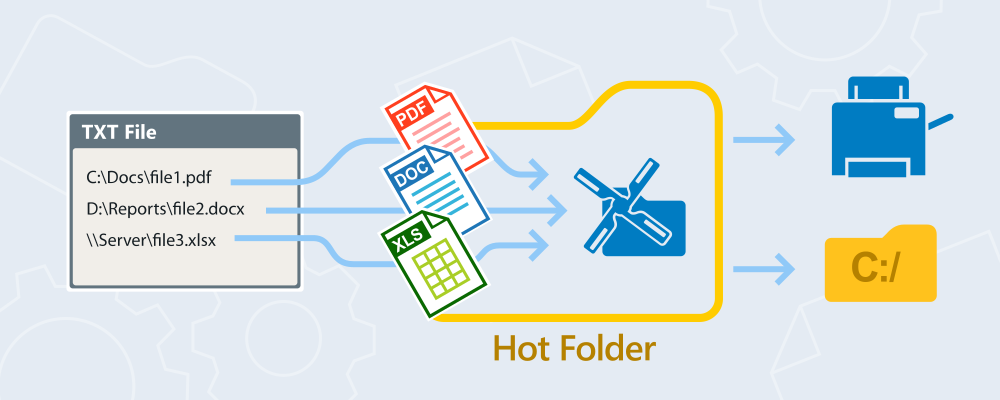
How it works
Here’s the suggested workflow:
- Filter by filename: FolderMill captures only your list file (*.txt).
- Run custom application (with ExtraFeature): Launching a utility that parses the list and adds the files from it to the queue. The command extracts the paths and drops those individual files back into the Hot Folder queue as new tasks.
- Break (Stop processing): Interrupting processing of the list file itself so that it does not proceed to further Actions. This will prevent FolderMill from attempting to convert or print the text list file itself.
- The final Action processes all files from TXT. The files that the utility extracted from the list arrive in the Hot Folder as regular incoming documents and are, for example, sent to a printer or converted (Print document or Convert to PDF Action).
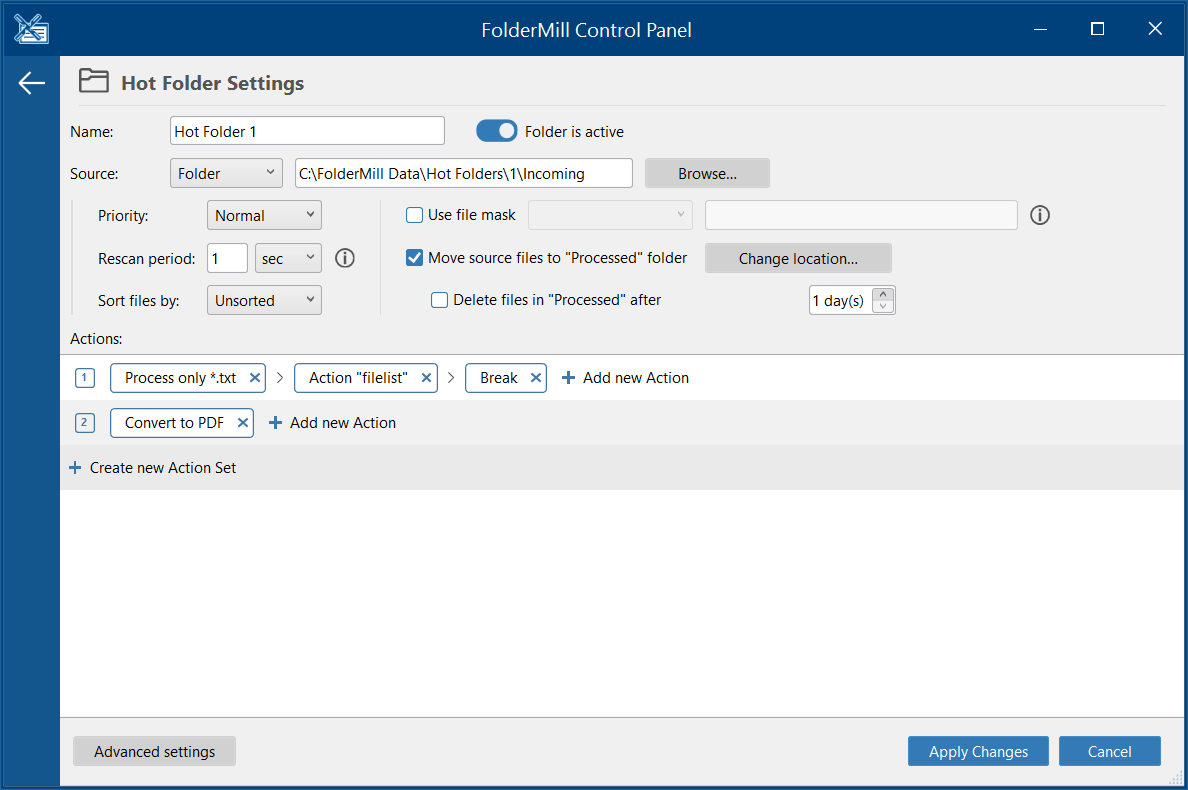
[Filter by filename: *.txt]→[Run Custom Application (ExtraFeature)]→[Break][Convert to PDF]
Note: Your file list can also be saved as a FLIST (*.flist) file, which would make it easy to distinguish if TXT files are also present in your processing queue. To change a plain text file into FLIST, simply change the file extension from .txt to .flist.
Step 1 – Create a list of files in TXT format
You'll need a plain text file – a file that contains paths to files that should be processed.
Text file example:
C:\Docs\file1.pdf
D:\Reports\file2.docx
\\Server\Shared\file3.xlsx
 How to create a text file with file paths
You can easily create a TXT list of all files contained in any folder with file names and paths using just Notepad. Each file path appears on a separate line (see screenshot below). Follow these steps:
- Open a folder and select all files (Ctrl + A).
- While holding Shift, right-click the files and choose Copy as path.
- All file paths are now on the clipboard.
- Open Notepad and create a new TXT file.
- Paste the file paths (Ctrl + V).
- Save the TXT file.
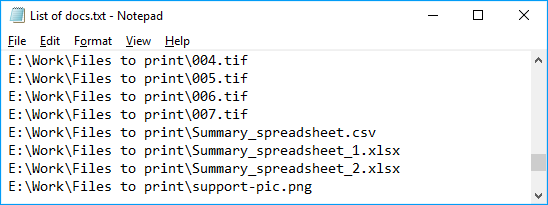
Note: Your file paths may or may not be enclosed in double quotes (e.g., "C:\Work\Files to print\001.tif") — this doesn't matter for FolderMill.
The text file containing the list of paths must have each file path on a new line. FolderMill supports text file lists saved in the following encodings:
- UTF-8
- UTF-8 with BOM
- UTF-16
- ANSI
- ASCII
Step 2 – Create an Action Set for the file list
- Add a Filter by filename Action and set it to process only your specific list extensions (e.g.,
*.txtor*.flist).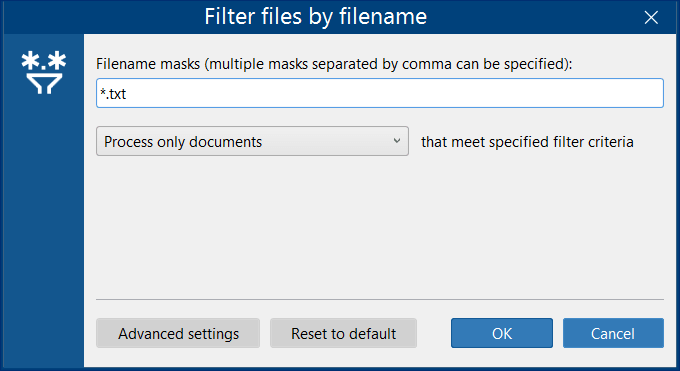
- Add the Run custom application Action with the parameters described below. Configure the following fields:
- Path to application or script file: ExtraFeature. "ExtraFeature" is a built-in FolderMill command, not a path to a third-party app.
- Command line parameters (See "Parameter Details and Examples" below for more info):
-action filelist hotfolder:"[Target_Incoming_Path]"-options ini:"{ini}"
Instead of [Target_Incoming_Path] insert your Hot Folder path (e.g., C:\FolderMill Data\Hot Folders\1\Incoming). You can omit the "hot folder" part (hotfolder:"[Target_Incoming_Path]"). In this case, your current Hot Folder will be used automatically.
Click on Advanced settings within the Action and enable these options:
☑ Run in hidden mode
☑ Wait until process is finished
☑ Check return code
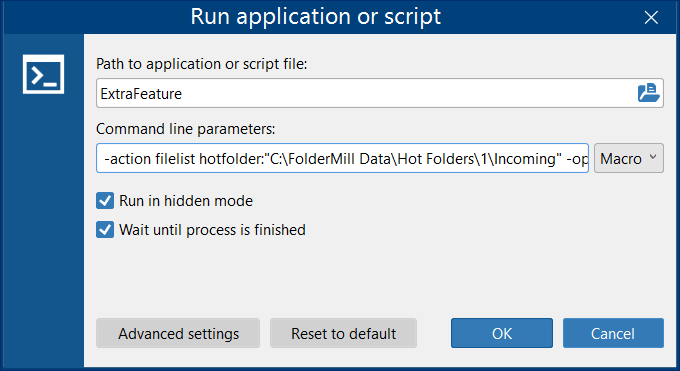
- Add a Break action to stop processing. This ensures the text file itself is discarded after its contents are read.
Step 3 – Start FolderMill Processing
After configuring FolderMill, click Start on the main Control Panel to begin monitoring and processing incoming files. Once the TXT (or FLIST) with file paths arrives at the Hot Folder, the listed files get processed automatically.
Result
When a list file is placed into the Hot Folder:
- FolderMill reads the list file
- Adds all referenced files to the target Hot Folder
- Processes them using your configured actions (e.g., printing)
Parameter details and examples
The command line parameter tells FolderMill where to send the files found in the list.
Option A: Route files to a specific Hot Folder
If you want the list to distribute files to a different Hot Folder (e.g., Hot Folder #1), specify its exact Incoming path:
-action filelist hotfolder:"C:\FolderMill Data\Hot Folders\1\Incoming" -options ini:"{ini}"
Note: If your destination folder path contains spaces, like "FolderMill Data", you must wrap the entire path in double-quotes.
Option B: Send files to the current Hot Folder
If you omit the hotfolder: parameter, FolderMill will automatically pull the files into the current Hot Folder where the text file was dropped. If you want the extracted files to be processed right where you dropped the text list, simply use this command:
-action filelist -options ini:"{ini}"
The {ini} variable: You must include -options ini:"{ini}" exactly as written. This is an internal variable required by FolderMill to pass settings to the utility. Do not replace {ini} with your own text.
Why use a text file list? (Real-world scenarios)
Processing files via a simple text list unlocks powerful automation capabilities, allowing you to handle massive document sets without manual copying or dragging and dropping.
Here is how this feature is typically used in production environments:
- Reduce network traffic: Imagine needing to print 1,000 massive CAD drawings or high-res PDFs stored on a distant network drive. Instead of choking your network bandwidth by copying 1,000 heavy files into the FolderMill Incoming folder, you simply drop a single, kilobyte-sized .txt list of their paths. FolderMill does the rest.
- Seamless ERP/CRM integration: If you use third-party billing, CRM, or ERP systems (like SAP, 1C, etc.), writing a script to generate a daily .txt or .flist print log is incredibly easy. It is much faster and more reliable for your database to output a text list than to have it physically move files between servers.
- Complex routing: A file list dropped into one Hot Folder (e.g., a distribution folder) can route batches of documents to other Hot Folders (via the hotfolder:“...” parameter).