
 Reviewed by Leonid Jakobson
Many business workflows require sending print jobs straight to specialized devices like thermal label printers, plotters, or industrial machines. This article explains how FolderMill handles direct "raw" printing and how to configure your system to ensure successful output for the so-called "printer language" command-based formats like ZPL, EPL, PCL, PostScript, and even natively supported PDFs.
What is Direct (Raw) Printing?
Direct printing is a method of sending print data straight to a printer port without any file conversion, image rendering, or driver-based processing. Instead of generating formatted output (like rendering a document into a bitmap image), the system transmits raw printer commands exactly as they are written.
This method is commonly used for thermal and label printers that interpret command instructions natively. Because there is no intermediate file conversion in the middle of the printing process, raw printing guarantees maximum speed and precise formatting.
Common command-based file formats include:
- ZPL / EPL – Used by Zebra, Eltron, and compatible thermal label printers.
- PLT – HPGL format used for plotting and CAD printing.
- PCL – Printer Command Language used by many laser and industrial printers.
- PS – PostScript command files.
- PRN – Raw print data streams generated by Windows drivers.
- PDF / TEXT – Can be raw-printed if the destination hardware natively supports PDF/Text rendering
 Important limitation: When using direct printing, standard Windows printing preferences (e.g., duplex printing, collation, or software color modes) cannot be applied. FolderMill simply copies the file to the printer port. The final output relies entirely on the commands within the file itself or the hardware settings configured directly on your printer’s screen.
Standard Method: Using DirectPrintHelper
FolderMill can forward files containing printer-language commands straight to the printer out of the box. In many cases — especially for "printer-friendly" formats like PRN, PCL, and PS — they are sent directly by default. However, you can strictly enforce this behavior by verifying that the DirectPrintHelper engine is active.
How to enable DirectPrintHelper:
- Open the FolderMill Control Panel and select your Hot Folder.
- Add a Print document Action.
- In the Action settings, choose your designated label or thermal printer.
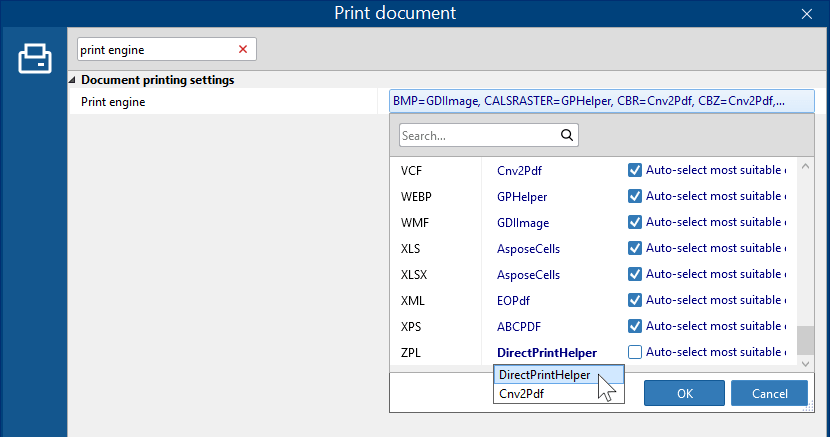
- Click on Advanced settings and navigate to Document printing settings → Print engine.
- Locate the specific file formats you are working with (e.g., ZPL, EPL, PDF).
- Select DirectPrintHelper from the drop-down menu next to those formats.
- Uncheck the Auto select most suitable engine option. (Note: This step is critical. If left enabled, FolderMill may automatically switch to a standard rendering engine if it detects conflicting print settings like duplex mode. Disabling it forces the software to stick to the direct printing method).
PDFs and Plain Text (TXT)
Direct printing isn't just for label formats (ZPL/EPL). DirectPrintHelper can also send standard PDF and TEXT files directly to the printer port. If the user has a high-quality printer that natively supports PDF rendering (treating it like a file printed directly from a USB flash drive), direct printing can be significantly faster than standard Windows rendering.
Alternative method: Installing a Generic / Text Only Printer Driver
If direct printing via DirectPrintHelper does not work in your environment — for example, if certain older printers or drivers do not accept raw data streams smoothly — you can install the standard Generic / Text Only printer driver in Windows.
How to set it up:
- Open the Control Panel in Windows and go to View devices and printers.
- Click Add a printer → The printer that I want isn't listed > Add a local or network printer with manual settings.
- Select Use an existing port and choose the exact same port your label printer is currently using.
- Under the Manufacturer list, select Generic, and for the Printer, choose Generic / Text Only.
- Finish the wizard, naming the printer something easily recognizable (e.g., "ZPL Raw Printer").
- Once installed, simply open the FolderMill Control Panel and select this newly created Generic / Text Only printer within your Print document Action.
Learn more:
How to Print ZPL files directly to a Zebra printer using Generic Windows Text Printer
Printing PCL and PS: Recommended Third-Party Tools
While raw printing handles many formats natively, complex command streams like PCL and PostScript (PS) sometimes require dedicated interpreters to process accurately on non-native printers. FolderMill integrates seamlessly with standard industry tools:
For PCL files: FolderMill uses GhostPCL. You do not need to download this manually; GhostPCL is available by request — please contact us to get it. It should be then placed into FolderMill's internal thirdparty directory (typically "C:\Program Files (x86)\FolderMill") and runs automatically when required.
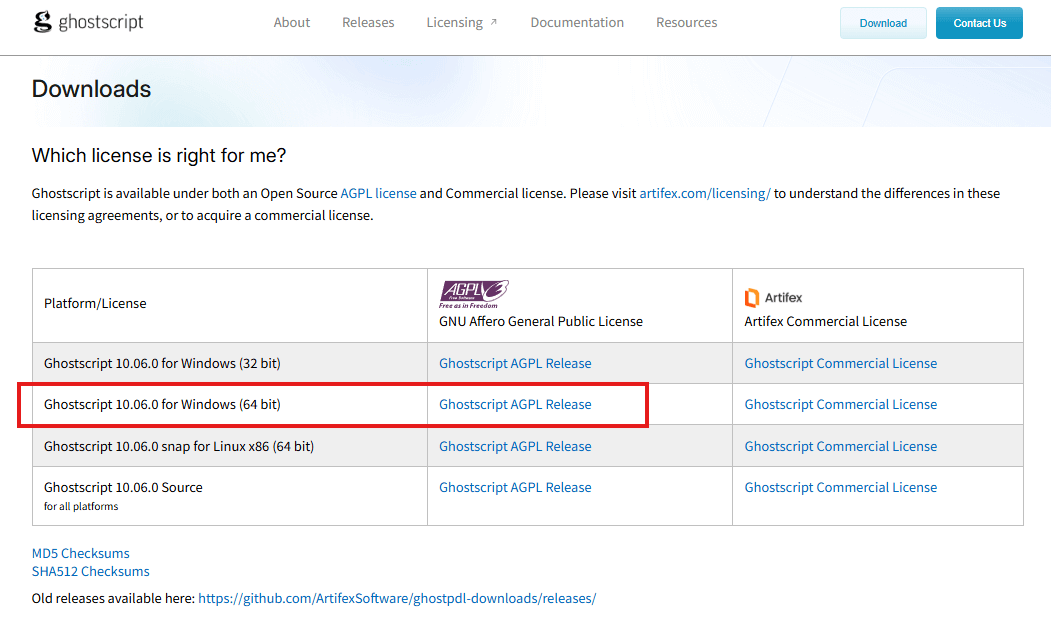
For PS files: FolderMill requires Ghostscript. You can download Ghostscript for free from the official site. If you have a 64-bit Windows system, the 64-bit version is recommended. Once installed, FolderMill automatically leverages Ghostscript as an interpreter to route PostScript files correctly.
Here's the download link: https://www.ghostscript.com/releases/gsdnld.html

Technical Review & Approval
Leonid Jakobson is Director and Head of Product at fCoder, SIA, with 15+ years of experience in document processing automation. He leads development of FolderMill, a platform for automated file conversion, printing, and workflow optimization used by enterprises worldwide.
 Expert-Verified
"I have personally reviewed this article to ensure everything is accurate and the step-by-step instructions work exactly as described."
— Leonid Jakobson